System Installation
Obtain the Image
The system image for the Quectel Pi M1/L1 smart main control board can be obtained from the Quectel Developer Website. Click “Quectel Pi” in the product category navigation bar to find and download the required image. If you have any questions, please contact technical support.
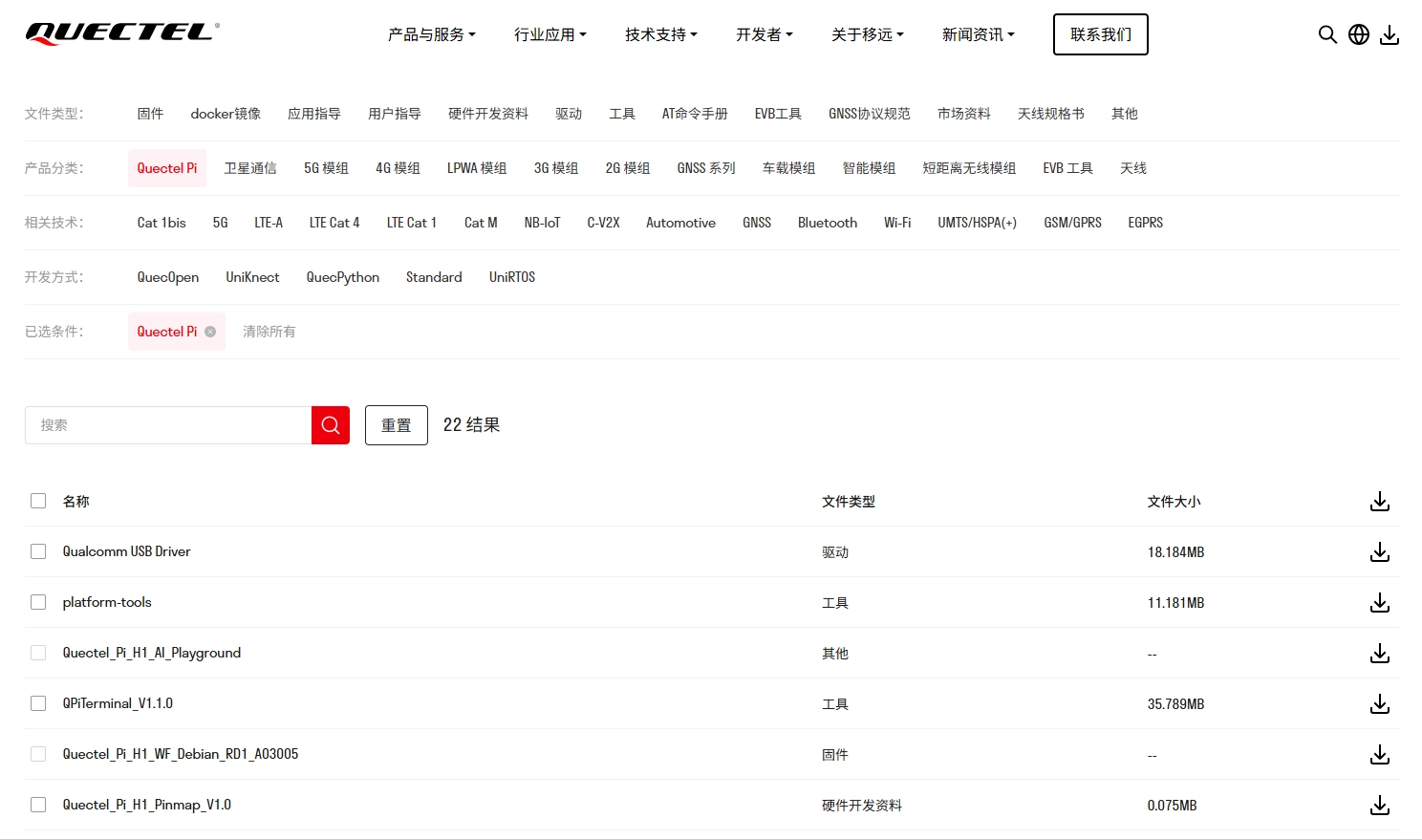
Before flashing the Quectel Pi smart main control board image, make sure that the Qualcomm_USB_Driver_v1.0.10065.1 driver is installed. If it has not been installed, click here to download and install it.
Flash the Image (QDL)
Disable ModemManager
Prerequisite: If your Linux distribution uses systemd, it may include the ModemManager tool, which is used to configure mobile broadband devices. When the device is connected via USB, it may be recognized as a Qualcomm modem, causing ModemManager to attempt to configure it and interfere with the QDL flashing process. Therefore, ModemManager must be disabled before connecting the device.
Run the following command to stop ModemManager:
sudo systemctl stop ModemManager
Download the QDL Tool
Linux x64 Click the link to download: https://www.quectel.com.cn/wp-content/uploads/2026/03/Quectel_Pi_H1_QDL_Linux_x64烧写固件工具.zip
Windows x64 Click the link to download: https://www.quectel.com.cn/wp-content/uploads/2026/03/Quectel_Pi_H1_QDL_Win_x64烧写固件工具.zip
Enter EDL Mode
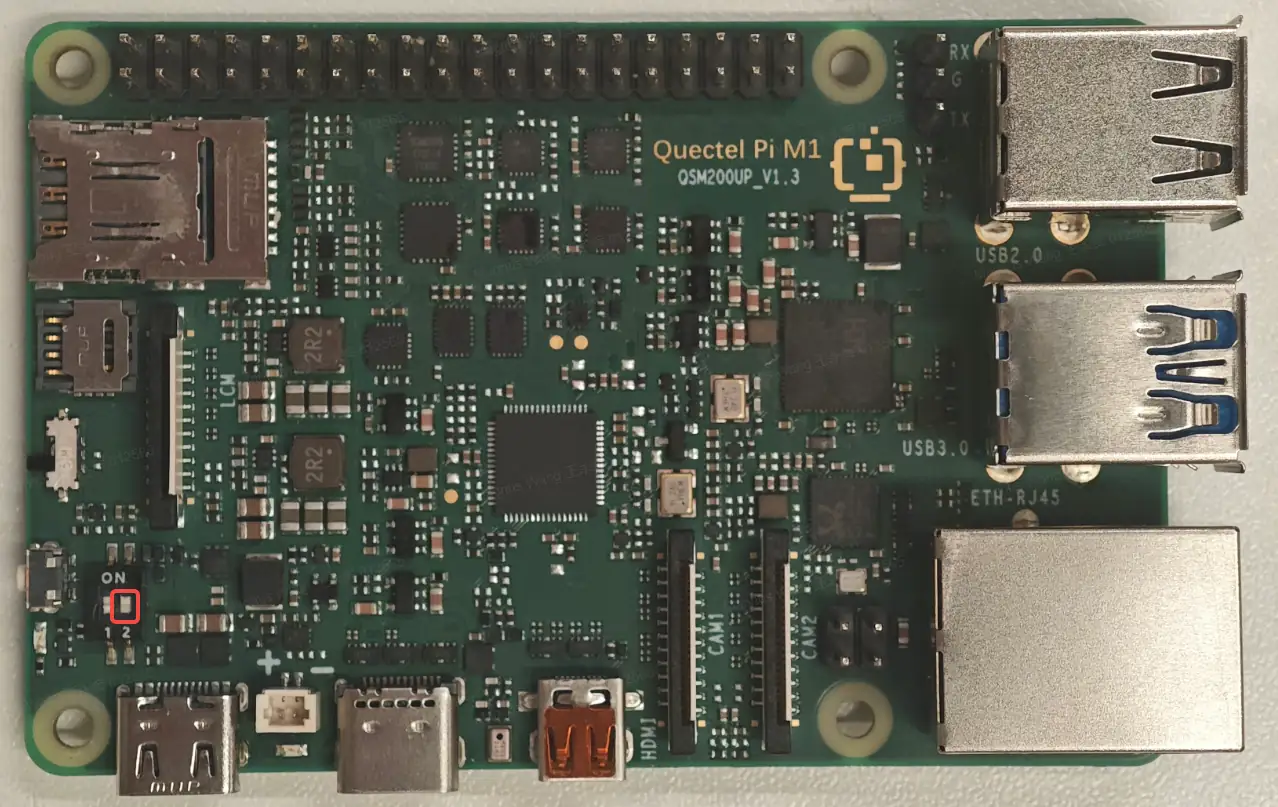
Switch the Quectel Pi M1 to download mode. Power off the board, turn DIP switch No. 2 to the ON position, and then power on the board. The module will enter EDL (Emergency Download) mode.
If automatic power-on is not enabled, press the PWRKEY button to power on the module.
Linux x64
Extract the QDL_Linux_x64 package. Open a terminal window in the directory containing the firmware files, rawprogram_unsparse0.xml, patch0.xml, and the QDL binary file.
Run the QDL executable in the QDL_Linux_x64 directory using the following command to flash the software:
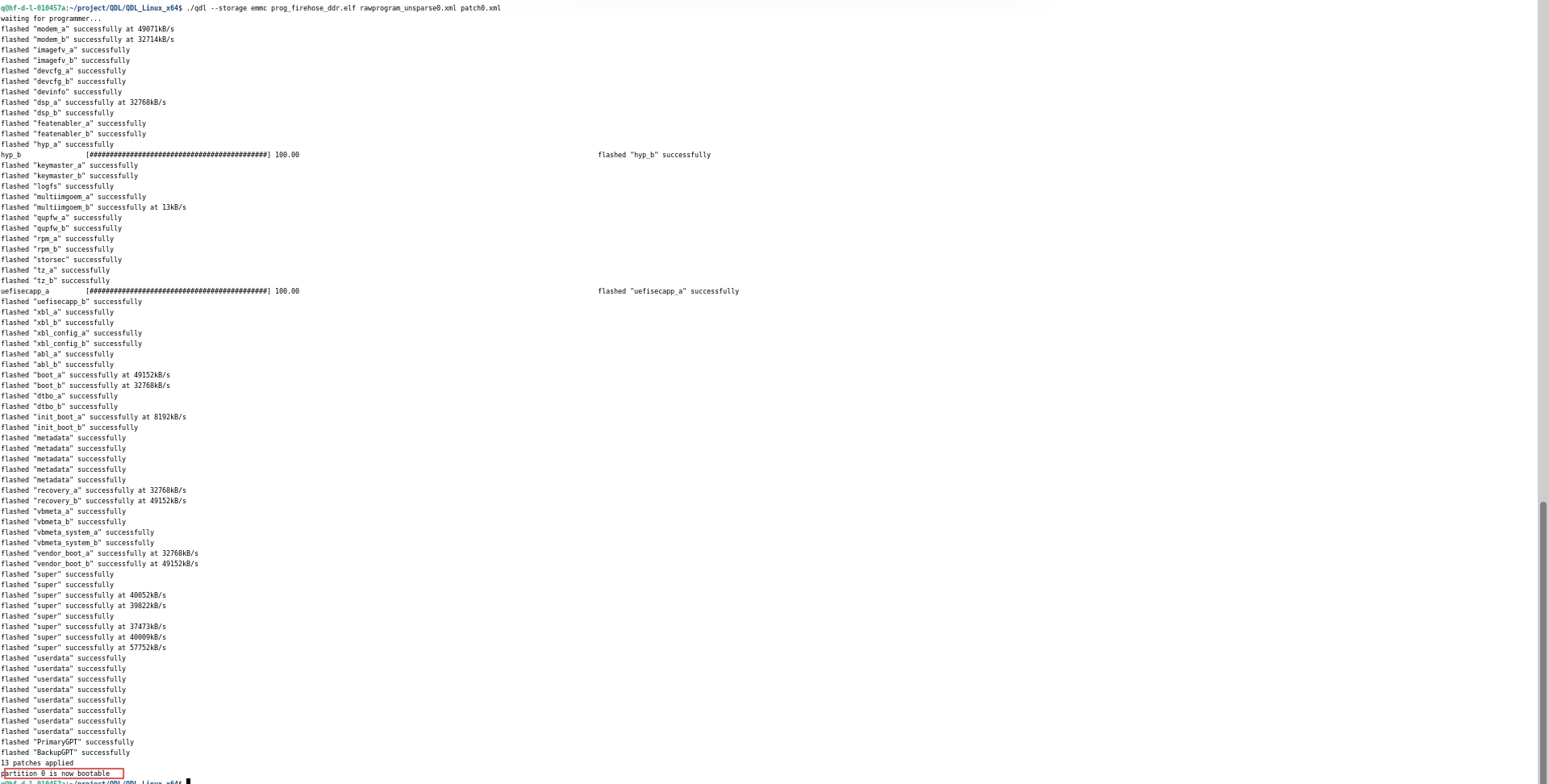
./qdl --storage emmc prog_firehose_ddr.elf rawprogram_unsparse0.xml patch0.xml
Note: If the rawprogram_unsparse0.xml file contains entries with the erase tag, they must be removed. This tag is used to ensure that the partition area is erased, but the QDL tool does not support it. Keeping the tag will cause an error.
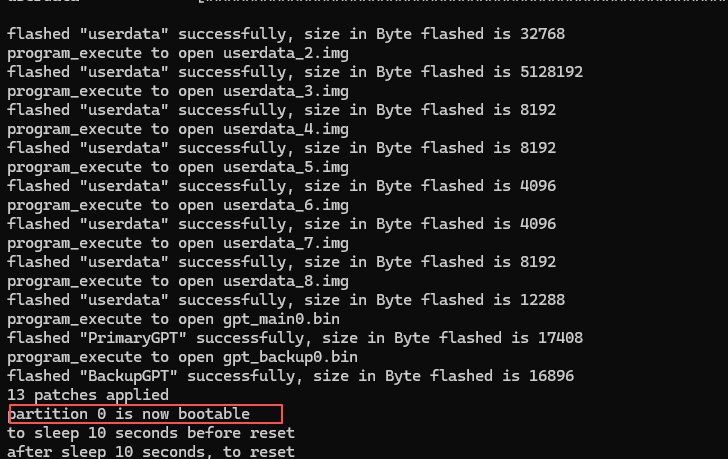
If “partition 0 is now bootable” is displayed in the terminal window, the flashing process has completed successfully, as shown in the figure below:
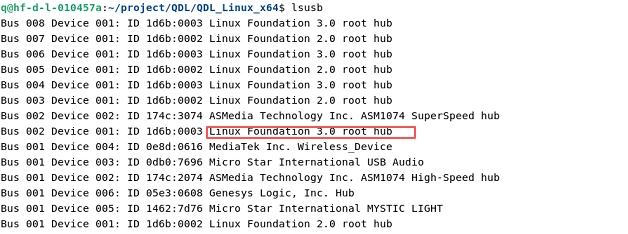
After the flashing process is completed successfully, run the lsusb command. The device information will be displayed in the terminal window, as shown in the figure below:
Windows x64
Convert the device driver to the WinUSB driver.
After installing the Qualcomm_USB_Driver_v1.0.10065.1 driver, the device driver must be converted to WinUSB.
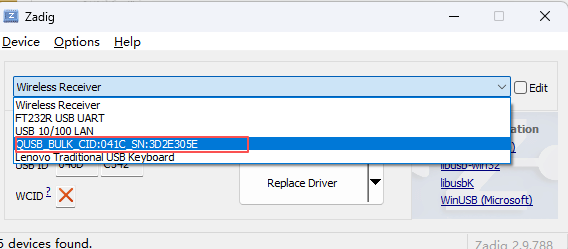
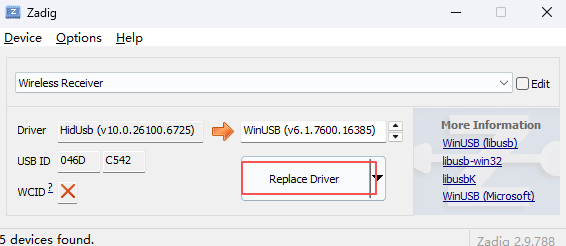
Click the Zadig website to download the tool for converting the driver to WinUSB. After downloading, run the tool as an administrator. Power on the main control board and make sure it enters EDL (Emergency Download) mode. In Zadig, click “Options” → “List All Devices”, find “QUS_BULK_CID:041C_SN:3D2E305E” from the drop-down list, select “WinUSB” on the right, and then click “Replace Driver” to complete the driver conversion. The detailed steps are shown in the figure below.
Extract the QDL_Win_x64 package, and place the firmware files, rawprogram_unsparse0.xml, patch0.xml, and the QDL executable file in the same folder.
Open a CMD window and run the QDL executable in the QDL_Win_x64 directory using the following command:
QDL_Win_x64>QDL.exe prog_firehose_ddr.elf rawprogram_unsparse0.xml patch0.xml
Note: If the rawprogram_unsparse0.xml file contains entries with the erase tag, they must be removed. This tag is used to ensure that the partition area is erased, but the QDL tool does not support it. Keeping the tag will cause an error.
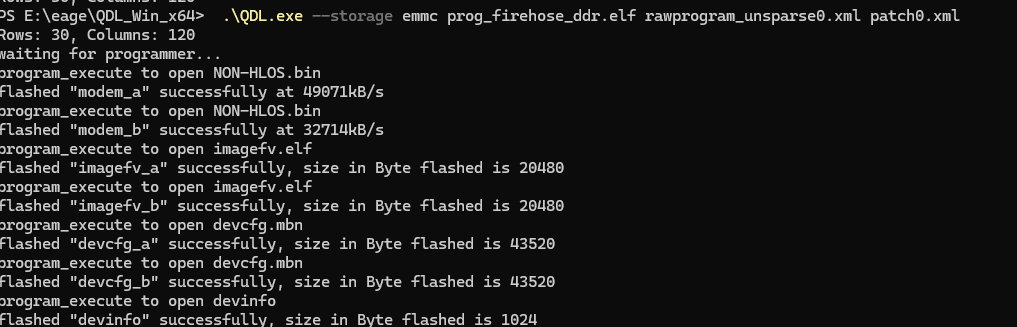
The flashing process is completed successfully, as shown in the figure below:
Notes
If the flashing process fails, perform the following steps and retry:
Power off the device.
Disconnect the Quectel Pi M1.
Restart the Quectel Pi M1.
For Windows, it is recommended to use QFIL for flashing.
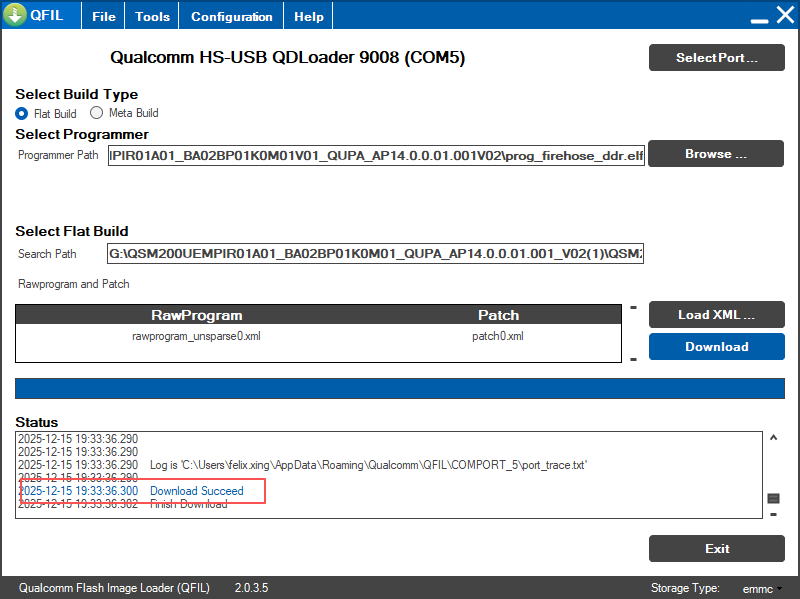
Flash the Image (QFIL)
QFIL (Qualcomm Flash Image Loader) is an official firmware flashing tool developed by Qualcomm. It is mainly used for smartphones, tablets, and other embedded devices based on Qualcomm chipsets. Its core function is to flash or write firmware files, such as the Bootloader, Recovery, and kernel, to the device via a USB connection.
Note: Do not select “Erase All Before Download” in the configuration.
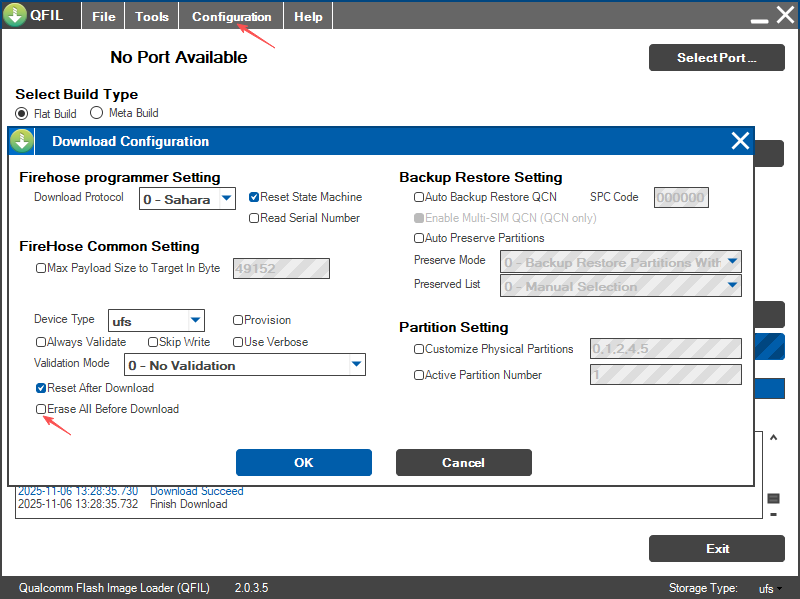
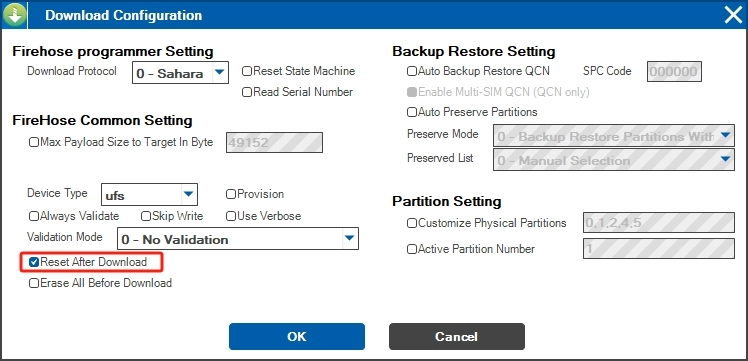
Click “Configuration”, then click “FireHose Configuration” in the pop-up menu. Select the “Reset After Download” checkbox, and then click “OK”.
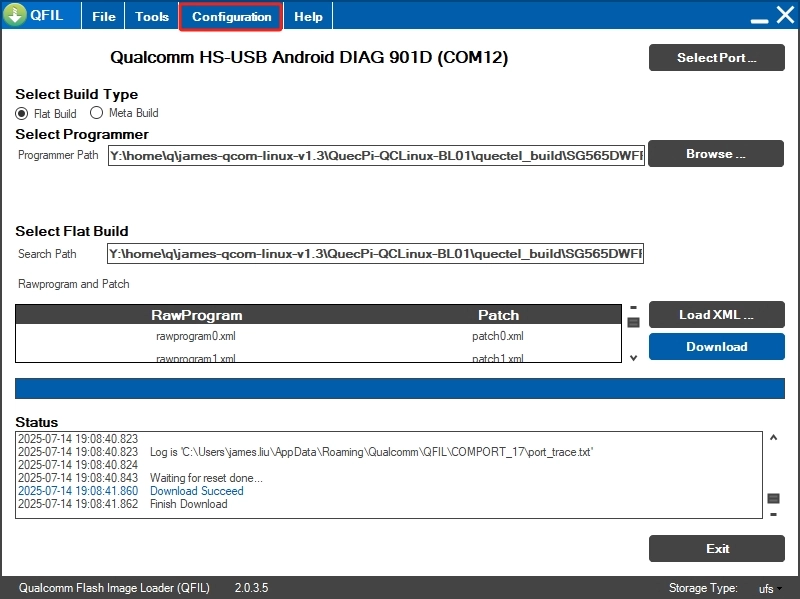
Select “Flat Build” as the build type, and select “emmc” as the storage type in the lower-right corner.
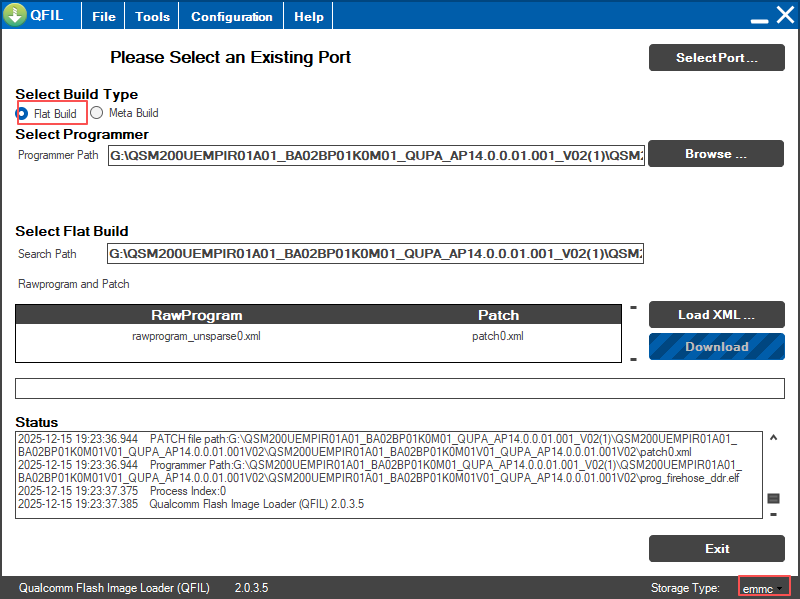
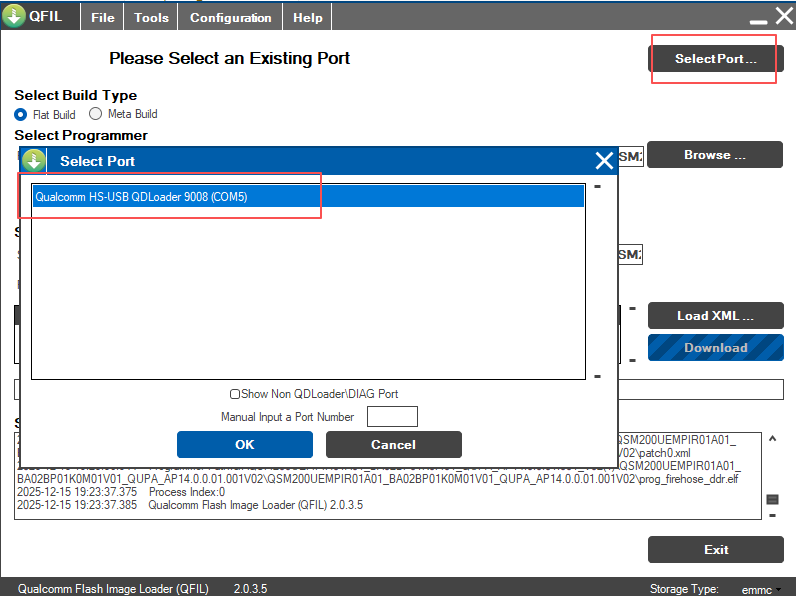
Press and hold the power button on the Quectel Pi M1, power on the device, click the “Select Port” button, select the “9008” port, and then click “OK”.
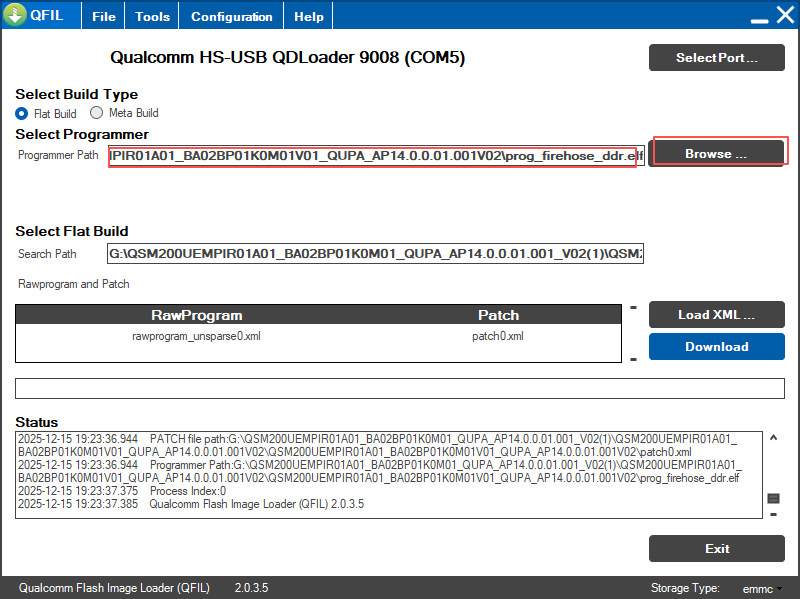
Click the “Browse” button and select the “prog_firehose_ddr.elf” file.
Click the “Load XML” button and select all “rawprogram0.xml” files and “patch0.xml” files.
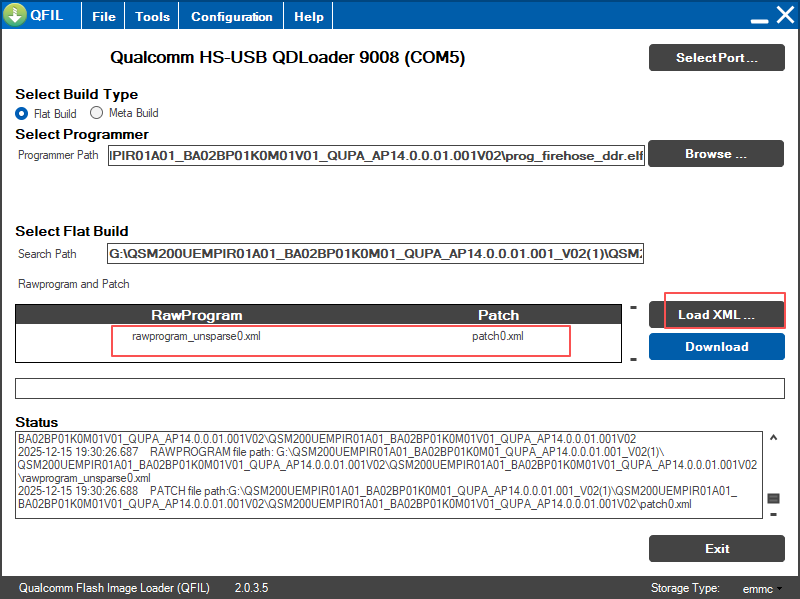
Click the “Download” button. When “Download Succeed” appears in the Status box, the flashing process has completed successfully. Power off the device, restore Boot1 to its original position, and then power on the device again to boot the system.